
Apple Watch remains one of the best smartwatches you can buy, thanks to its seamless integration with the Apple ecosystem, advanced health tracking, and powerful fitness features. Whether you own the latest Apple Watch Series 11, Apple Watch Ultra 3, or an older model, the experience is smooth, reliable, and packed with useful tools.
However, one area where many users still want improvement is battery life.
Depending on the model, most Apple Watches need to be charged every one to two days. While Apple includes Low Power Mode to extend battery life, enabling it also disables or limits several useful features like continuous heart rate monitoring and the Always-On Display.
Fortunately, there are smarter ways to make your Apple Watch last longer without significantly changing how you use it.
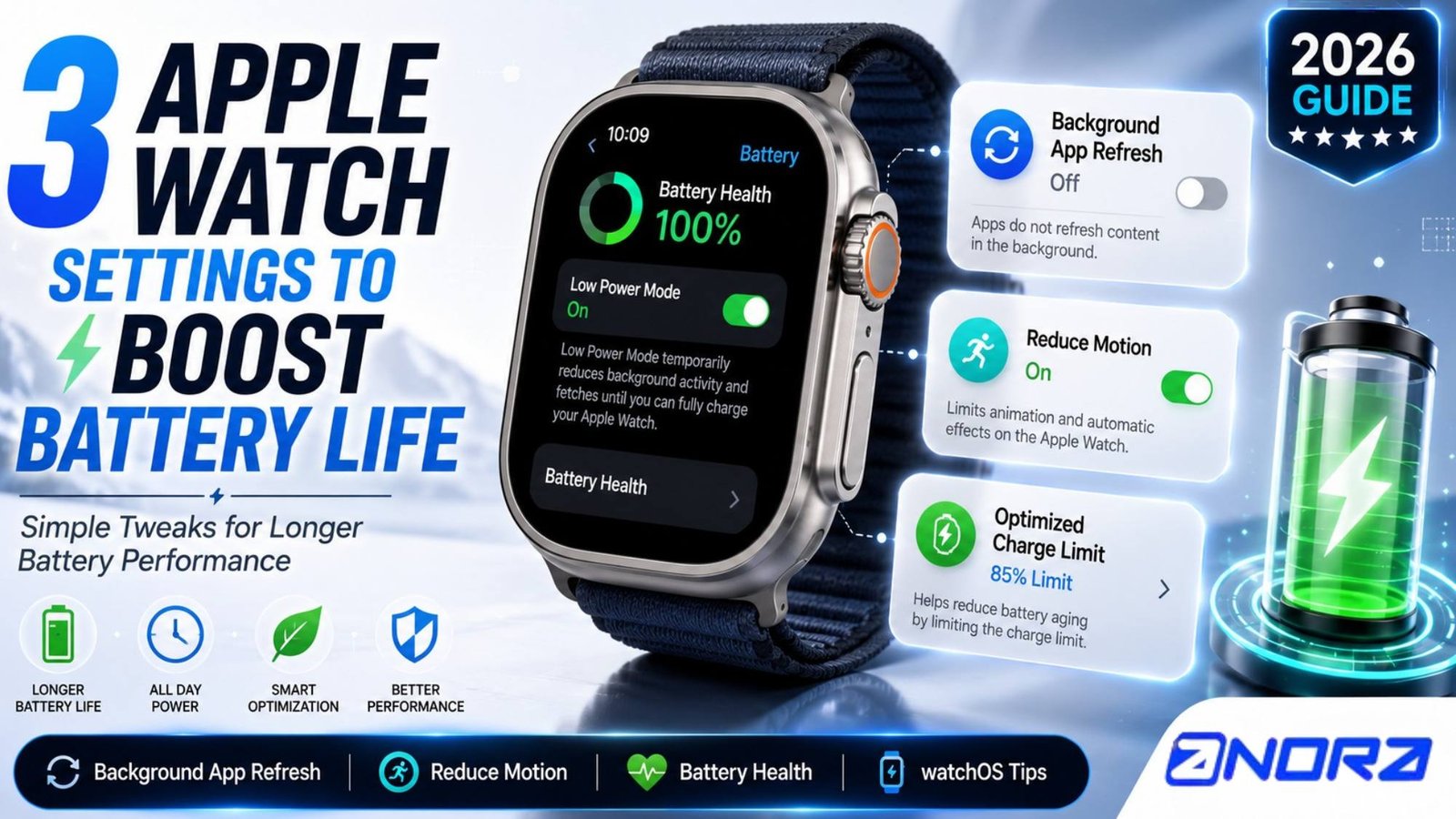
Here are three Apple Watch settings you should consider turning off to maximize battery life in 2026.
Why Apple Watch Battery Drains Quickly
Unlike traditional watches, Apple Watch is constantly working in the background.
It tracks your heart rate, monitors workouts, syncs notifications, refreshes apps, checks your location, and communicates with your iPhone throughout the day.
Although these features make Apple Watch incredibly useful, they also consume power.
By disabling a few non-essential settings, you can reduce battery drain while keeping most of your favorite watchOS features intact.
1. Turn Off Background App Refresh
One of the easiest ways to improve battery life is by disabling Background App Refresh.
Many Apple Watch apps continue updating information even when you’re not actively using them. News apps download the latest headlines, weather apps refresh forecasts, and third-party apps constantly synchronize new content.
While this keeps information current, it also means your watch uses power throughout the day.
How to Disable Background App Refresh
On your Apple Watch:
Settings → General → Background App Refresh
You can either:
- Turn Background App Refresh off completely.
- Disable it only for specific apps that don’t need constant updates.
Why It Helps
Disabling this feature reduces background activity and lowers processor usage.
The only noticeable difference is that some apps may take an extra second to load fresh information when you open them.
For most users, that’s a worthwhile trade-off for noticeably longer battery life.
2. Enable Reduce Motion
Apple’s watchOS includes beautiful animations that make navigation feel smooth and responsive.
Whenever you open an app, return to the Home Screen, or switch between menus, the interface displays animated transitions.
Although these effects improve visual appeal, they require additional graphics processing.
Fortunately, Apple allows you to reduce these animations.
How to Enable Reduce Motion
Navigate to:
Settings → Accessibility → Reduce Motion
Then turn the feature on.
What Changes?
Most zooming and animated transitions become simpler and faster.
The overall experience remains smooth, and many users hardly notice the difference after a few minutes.
Reducing motion also makes the interface feel slightly more responsive while helping conserve battery power.
3. Disable Optimized Charge Limit (When Needed)
Apple includes Optimized Charge Limit to help extend the long-term lifespan of your battery.
On supported Apple Watch models, the feature may stop charging at around 80% based on your charging habits.
This reduces battery wear over time.
However, there are situations where having a full battery is more important than maximizing long-term battery health.
For example:
- Traveling
- Long work shifts
- Hiking
- Outdoor adventures
- Marathon training
- Long flights
In these situations, charging to 100% gives you extra runtime throughout the day.
How to Change It
Go to:
Settings → Battery → Battery Health
Then adjust the Optimized Charge Limit setting.
Important Note
While disabling the feature occasionally can be useful, leaving it off permanently may increase long-term battery wear.
If you regularly charge your Apple Watch overnight, it’s generally better to leave battery optimization enabled unless you specifically need maximum runtime for the day (Apple Watch battery life).
Additional Tips to Improve Apple Watch Battery Life
Besides changing these settings, several everyday habits can help extend battery life even further.
Reduce Screen Brightness
Lower display brightness whenever possible.
A slightly dimmer display consumes less power without affecting readability indoors.
Limit Unnecessary Notifications
Every notification activates the display, vibration motor, and processor.
Review your notification settings and disable alerts from apps you don’t really need.
Keep watchOS Updated
Apple frequently improves battery optimization through software updates.
Installing the latest watchOS version ensures your watch benefits from these improvements.
Turn Off Wi-Fi and Cellular When Not Needed
If you’re carrying your iPhone nearby, your Apple Watch doesn’t always need separate Wi-Fi or cellular connections.
Disabling them when unnecessary can reduce battery usage.
Use Low Power Mode Only When Necessary
Low Power Mode remains useful during long trips or busy days.
However, since it disables several features, many users prefer optimizing individual settings first before relying on Low Power Mode.
Which Apple Watch Models Benefit?
These battery-saving tips work across most recent Apple Watch models, including:
- Apple Watch Series 11
- Apple Watch Series 10
- Apple Watch Series 9
- Apple Watch Series 8
- Apple Watch Ultra 3
- Apple Watch Ultra 2
- Apple Watch SE (3rd Generation)
- Older compatible Apple Watch models running recent versions of watchOS
Is It Worth Changing These Settings?
Absolutely.
None of these adjustments dramatically change how your Apple Watch works.
Instead, they reduce unnecessary background activity while preserving the health, fitness, and productivity features that most users rely on every day.
Even small improvements can add several extra hours of battery life over the course of a full day.
Final Thoughts
You don’t have to sacrifice your Apple Watch experience to enjoy better battery life.
By turning off Background App Refresh, enabling Reduce Motion, and managing Optimized Charge Limit based on your daily needs, you can noticeably reduce battery drain while keeping nearly all of your favorite watchOS features.
Combined with good charging habits and regular software updates, these simple adjustments can help your Apple Watch (Apple Watch battery life) last longer between charges and continue performing at its best throughout 2026.
Frequently Asked Questions (FAQs)
Yes. Disabling Background App Refresh reduces background activity, allowing your Apple Watch to conserve battery power.
No. It simply minimizes interface animations while keeping all core features fully functional.
Not necessarily. It’s best to leave it enabled for everyday use and only disable it temporarily when you need maximum battery life for travel or long days.
Yes. Depending on your Apple Watch model, Low Power Mode may limit or disable features such as continuous heart rate monitoring and the Always-On Display.
The Apple Watch Ultra series currently offers the longest battery life in Apple’s smartwatch lineup, lasting significantly longer than the standard Apple Watch models.