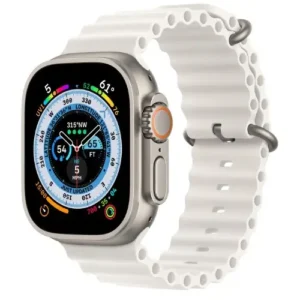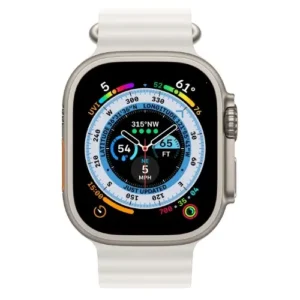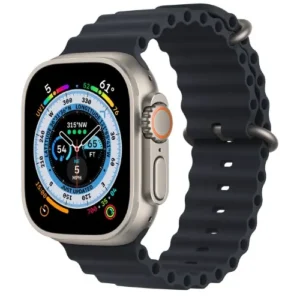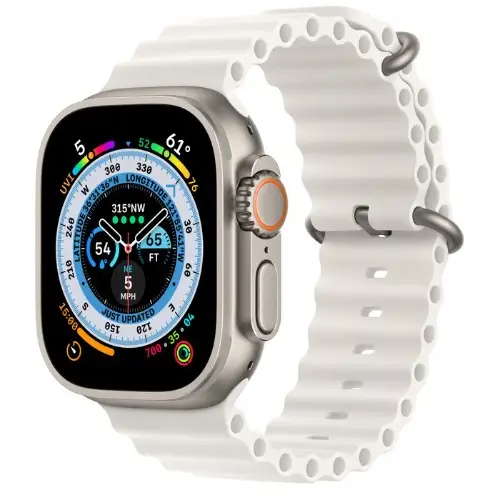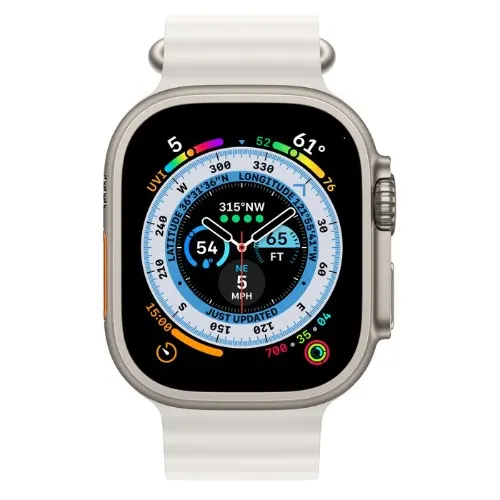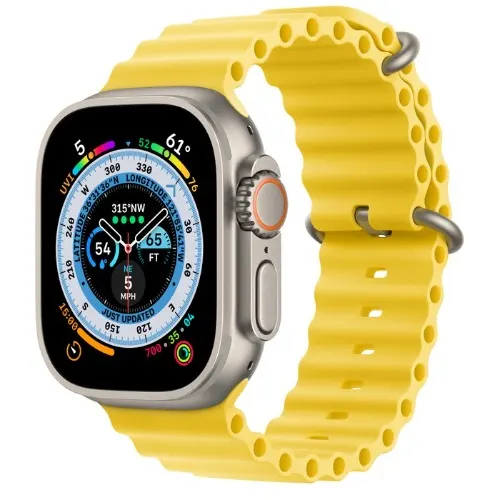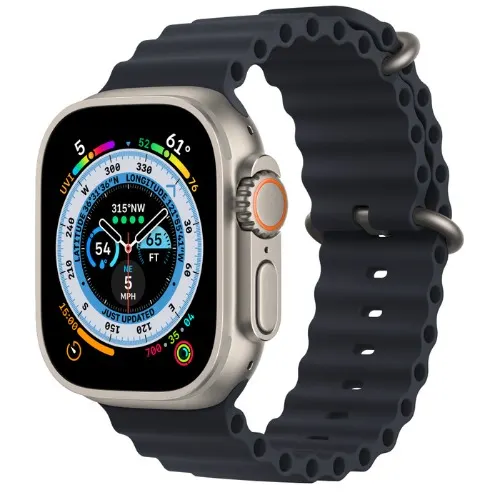
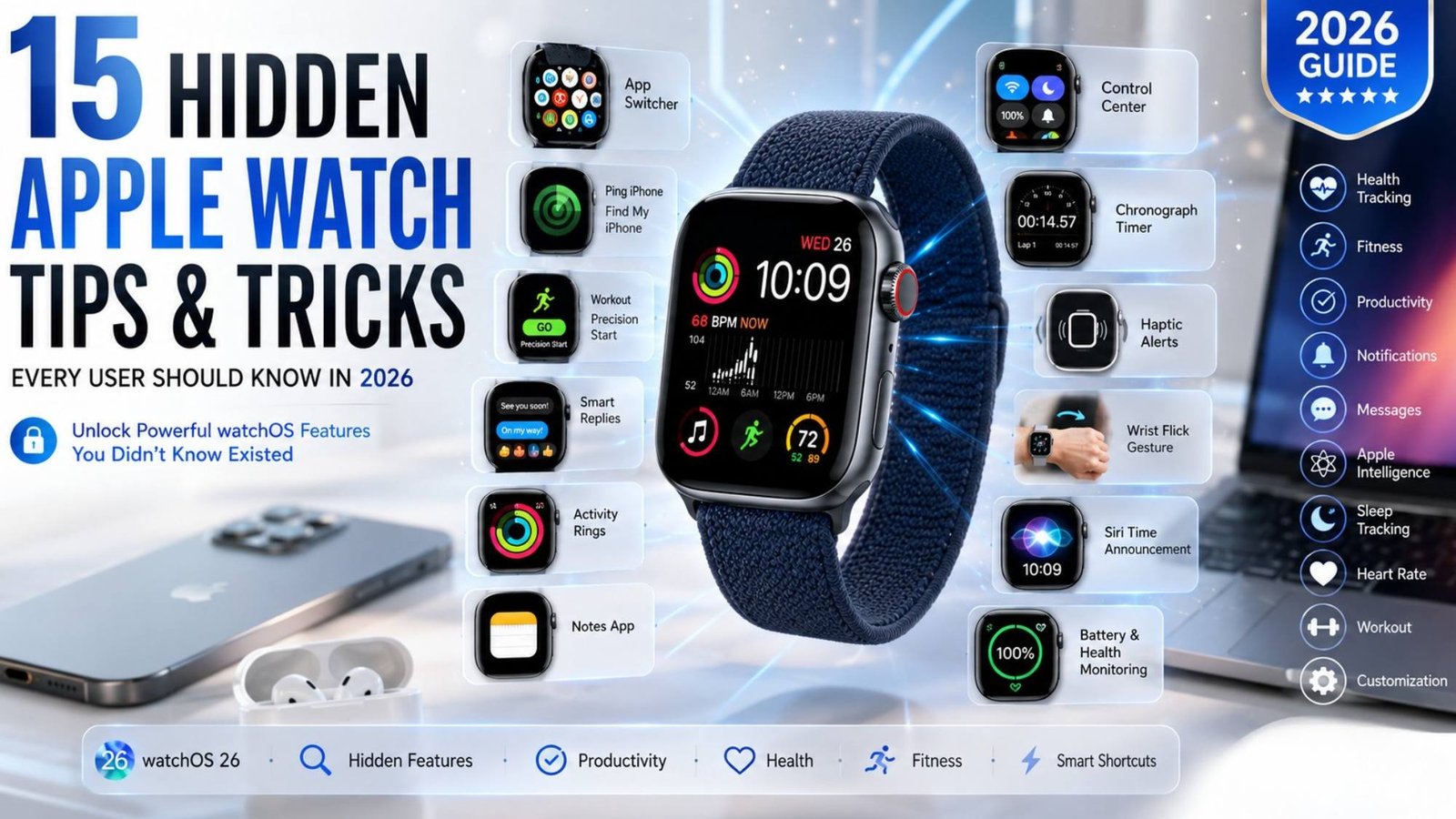
The Apple Watch has evolved far beyond a simple smartwatch. Whether you use it to track workouts, monitor your health, reply to messages, or control your smart home, Apple’s wearable is packed with powerful features (Apple Watch Tips and Tricks) that many users never discover.
With the latest version of watchOS introducing even more productivity and health tools, there’s never been a better time to unlock everything your Apple Watch can do.
In this guide, we’ll share 15 hidden Apple Watch tips and tricks that can help you navigate faster, customize your experience, and get more value from your smartwatch in 2026.
1. Quickly Switch Between Open Apps
If you’re constantly moving between apps like Workout, Messages, and Music, you don’t need to return to the Home Screen every time.
Simply double-press the Digital Crown to open the App Switcher. Rotate the Digital Crown to browse recently opened apps, then tap the one you want to use.
Swipe left on an app card and tap the X to close apps you no longer need.
Why it matters: It saves time and makes multitasking much smoother.
2. Change App View for Easier Navigation
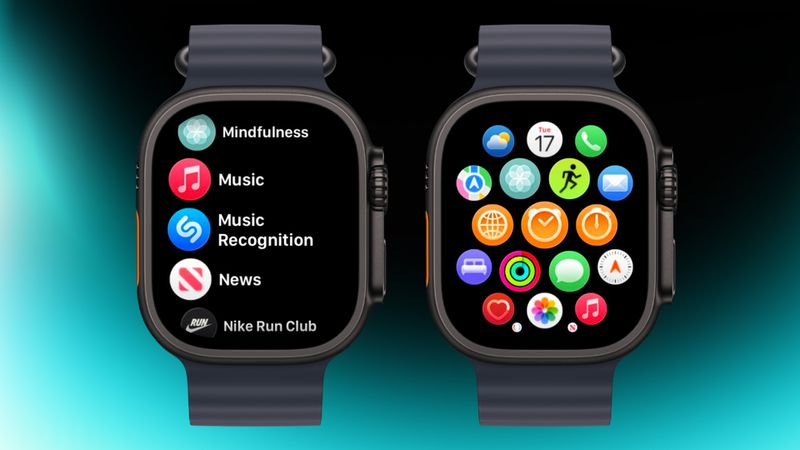
The default honeycomb app grid looks attractive, but it can become cluttered as you install more apps.
Instead, open the Watch app on your iPhone, tap App View, and choose List View.
Your apps will appear in alphabetical order, making them much easier to find.
3. Organize Your Favorite Apps
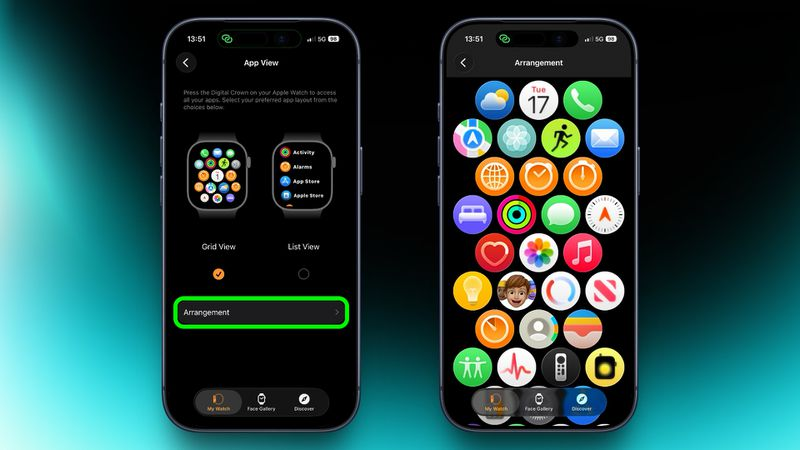
You don’t have to accept Apple’s default layout.
Press and hold an app in Grid View until the icons begin to move, then drag it wherever you want.
You can also rearrange apps from the Watch app on your iPhone under App View → Arrangement.
Keeping your most-used apps together helps you access them more quickly.
4. Find Your Missing iPhone Instantly
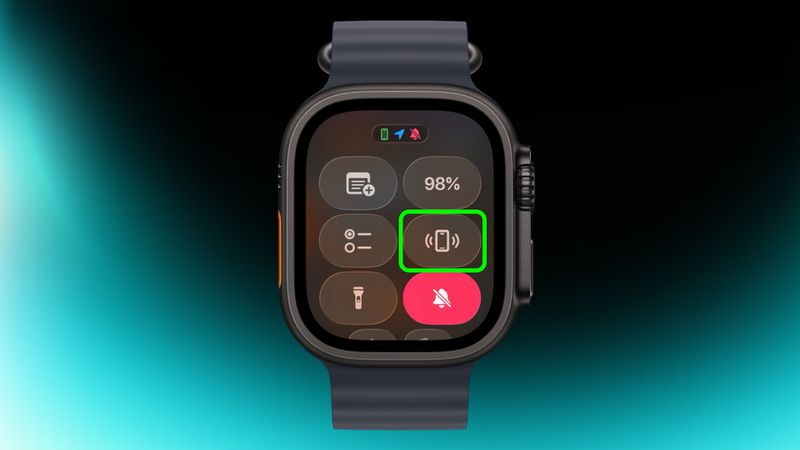
Can’t remember where you left your iPhone?
Open Control Center on your Apple Watch by pressing the Side Button and tap the Ping iPhone icon.
Need extra help locating it?
Press and hold the icon to make your iPhone emit a sound while flashing its LED light, making it easier to spot under cushions or in dark rooms.
5. Skip the Workout Countdown
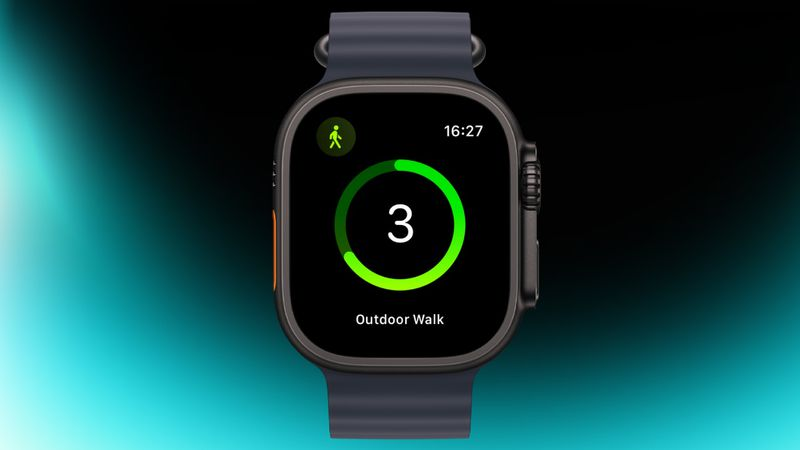
Every second counts when you’re ready to exercise.
Instead of waiting through the standard three-second countdown, simply tap the screen as soon as it appears.
Your workout begins immediately.
If you regularly start workouts quickly, consider enabling Precision Start in Workout Settings.
6. Make Notifications Easier to Feel
Missing important alerts?
Go to:
Settings → Sounds & Haptics
Then change vibration strength from Default to Prominent.
This adds a stronger haptic tap before every notification, making alerts much harder to miss.
7. Turn Your Apple Watch Into a Stopwatch
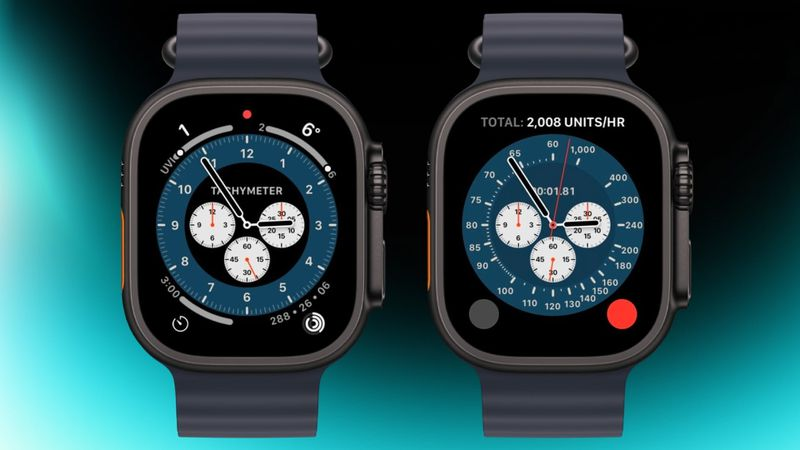
If you enjoy timing workouts or sporting events, try the Chronograph Pro watch face.
It functions like a traditional chronograph, allowing you to measure elapsed time using different timing scales.
You can also activate the built-in tachymeter to estimate speed over a fixed distance.
8. Instantly Return to the Top of Any List
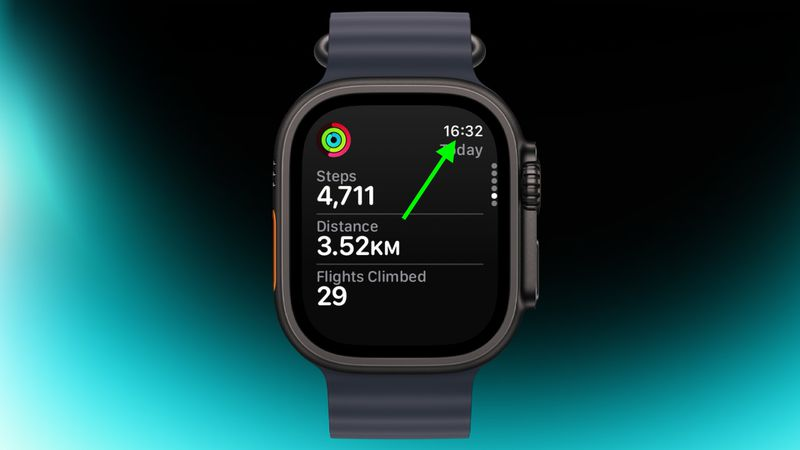
Scrolling through long lists can become frustrating.
Fortunately, there’s a simple shortcut.
Tap the time displayed at the top of the screen, and many Apple Watch apps will instantly return to the beginning.
It’s a small feature that saves a surprising amount of scrolling.
9. Remove Apps You Never Use
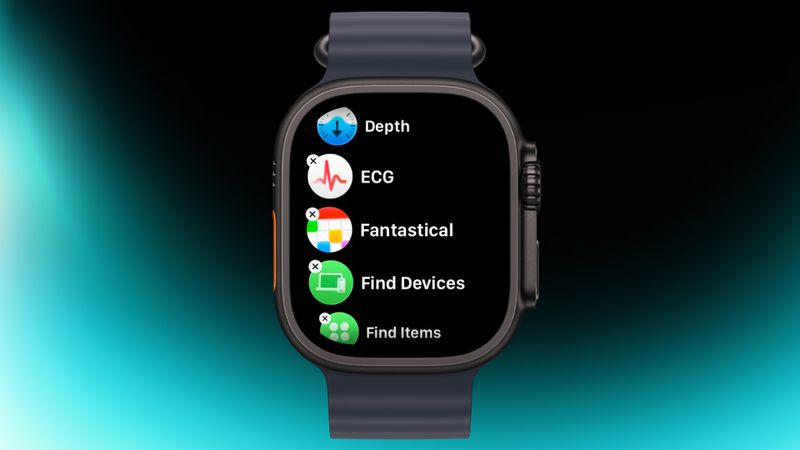
Keeping your watch organized improves navigation.
Press and hold the app screen until the icons begin to jiggle.
Next, tap the X to remove unwanted apps.
Most third-party apps and several built-in Apple apps can be removed this way.
10. Customize Control Center
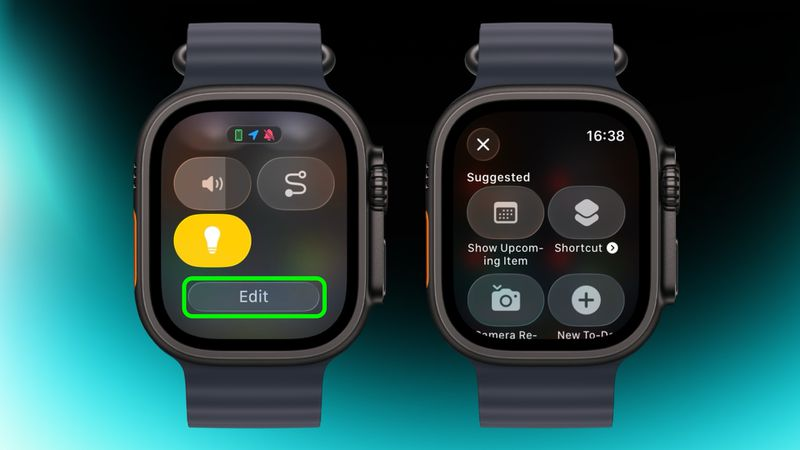
Control Center offers quick access to useful shortcuts, but many users never personalize it.
Open Control Center and tap Edit.
From there, you can add tools such as:
- Notes
- Smart Home controls
- Flashlight
- Accessibility shortcuts
- Third-party app controls
Customizing Control Center lets you reach your favorite features faster.
11. Make Your Watch Speak the Time
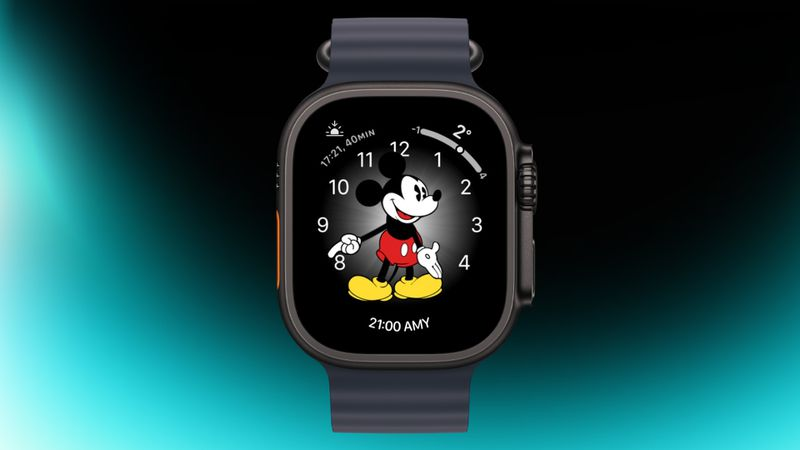
Using the classic Mickey Mouse or Minnie Mouse watch face?
Tap the character to hear the current time spoken aloud.
Alternatively, touch and hold the watch face with two fingers to have Siri announce the time on most watch faces.
Just make sure your Apple Watch isn’t in Silent Mode.
12. Create Better Smart Replies
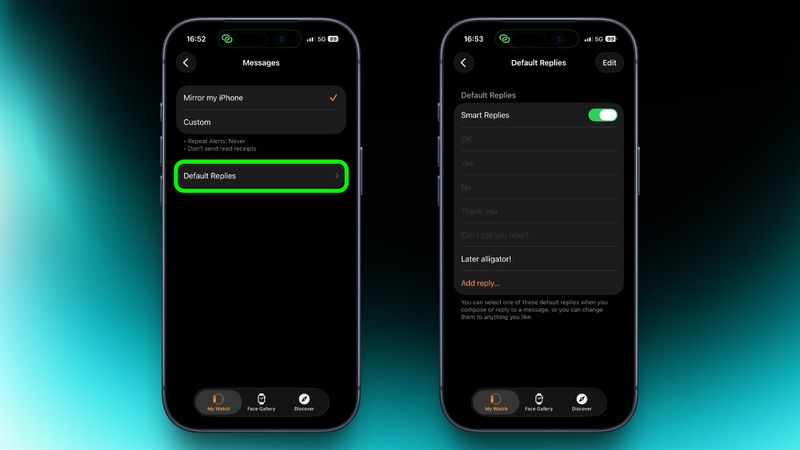
Responding to messages is even faster with personalized replies.
Open the Watch app on your iPhone.
Navigate to:
Messages → Default Replies
Here you can replace Apple’s default responses with replies you use every day.
This makes quick conversations much more personal.
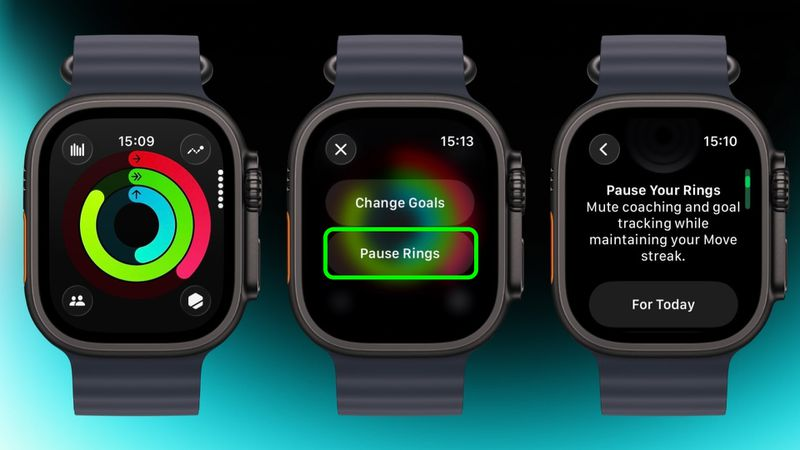
13. Pause Your Activity Rings
Life doesn’t always go according to plan.
Whether you’re recovering from illness, taking a vacation, or simply resting, you can temporarily pause your Activity Rings without losing your progress.
Open the Activity app, select your rings, and choose Pause Rings.
You can suspend them for a single day or for up to 90 days.
14. Create Notes Directly From Your Wrist
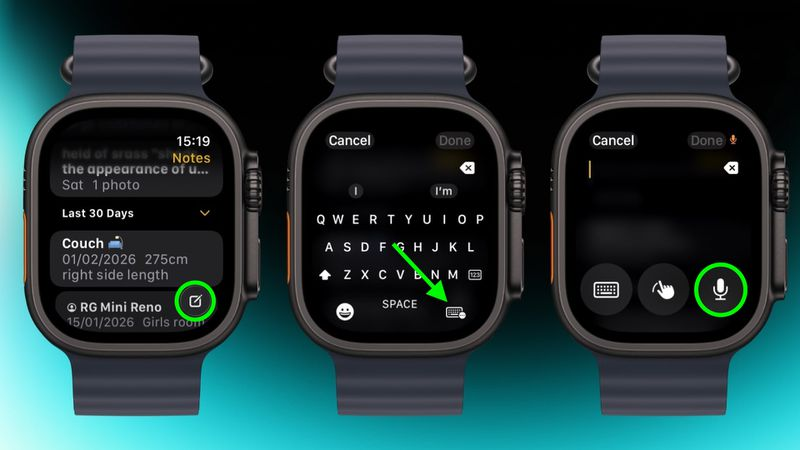
The Notes app in watchOS 26 finally allows users to create notes directly from their Apple Watch.
Simply tap the Compose button and dictate your note using your voice.
Your notes automatically sync through iCloud, allowing you to edit them later on your iPhone, iPad, or Mac.
It’s perfect for capturing quick ideas while you’re on the move.
15. Silence Calls and Notifications With a Wrist Flick
One of the newest watchOS 26 gestures lets you dismiss alerts with a simple wrist movement.
A quick flick of your wrist can:
- Dismiss notifications
- Silence incoming calls
- Stop timers
- Return to the watch face
This gesture works on supported Apple Watch models, including Apple Watch SE (3rd generation), Series 9, Ultra 2, and newer devices.
It’s one of the fastest ways to interact with your watch without touching the screen.
Get More From Your Apple Watch
Many Apple Watch owners only use a fraction of the smartwatch’s capabilities (Apple Watch Tips and Tricks).
Learning shortcuts like App Switching, Precision Start, customizable Smart Replies, stronger haptic alerts, and Activity Ring pausing can make your daily experience faster, more convenient, and more enjoyable.
As Apple continues adding new watchOS features each year, spending a few minutes exploring these hidden tools can help you get far more value from your smartwatch.
Whether you’re using your Apple Watch for fitness, communication, productivity, or health tracking, these simple tips will help you make the most of your device throughout 2026.