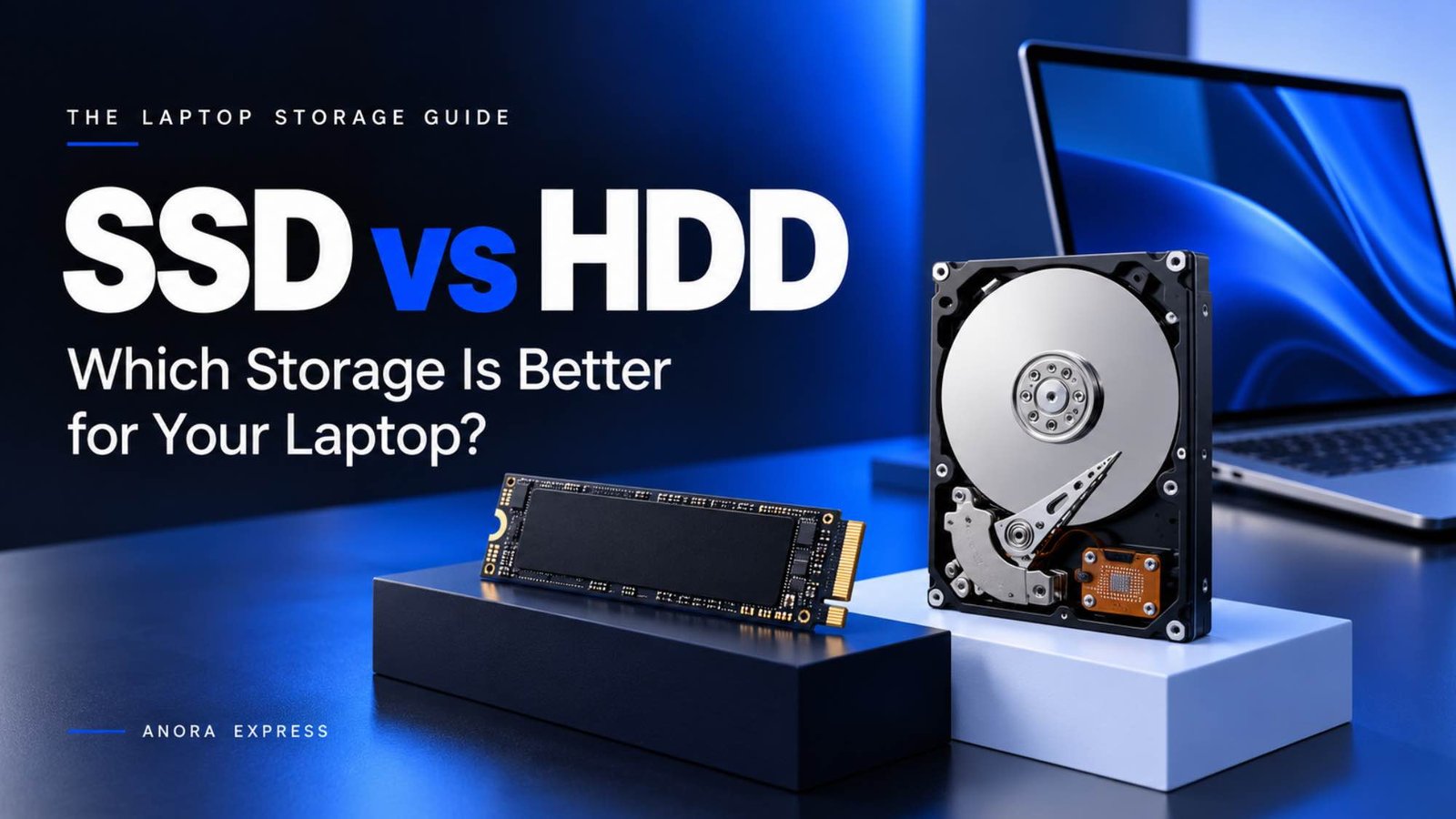
When buying a laptop, you will often come across two storage options: SSD and HDD. Although both are designed to store your files, applications and operating system, they work differently and offer very different levels of performance.
So, which should you choose?
An SSD (Solid State Drive) is generally faster, quieter, more energy-efficient and more durable. An HDD (Hard Disk Drive), on the other hand, offers larger storage capacities at a lower price.
For Nigerian buyers, choosing between an SSD and HDD can make a significant difference in how well a laptop performs, how quickly it starts and how long it remains useful.
Whether you are buying a laptop for school, business, programming, gaming or everyday use, understanding the difference will help you make a better purchasing decision.
In this guide, we compare SSD vs HDD in terms of speed, performance, storage capacity, durability, power consumption and price to help you choose the right option.
What Is an SSD?
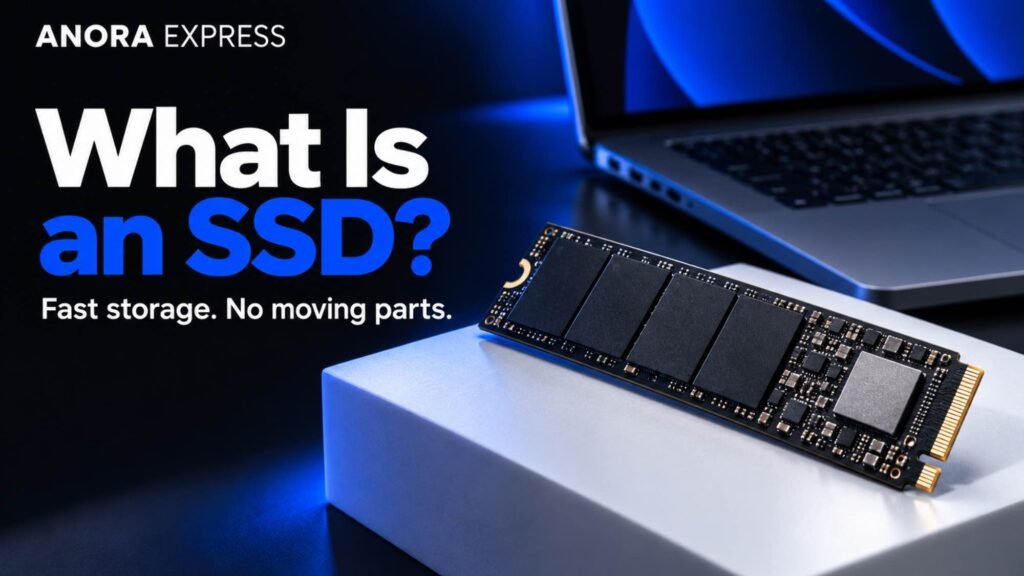
SSD stands for Solid State Drive. It is a storage device that uses flash memory to store information.
Unlike traditional hard drives, SSDs do not contain moving mechanical parts. Instead, they use electronic memory chips to read and write data.
This design allows SSDs to access information much faster than traditional HDDs.
With an SSD, you can enjoy:
- Faster laptop startup.
- Quicker application loading.
- Faster file transfers.
- Smoother multitasking.
- Better overall system responsiveness.
- Lower power consumption.
- Silent operation.
For example, a laptop with an SSD can start Windows significantly faster than a similar laptop with a traditional HDD.
This is one reason SSDs have become the preferred storage option in modern laptops.
What Is an HDD?
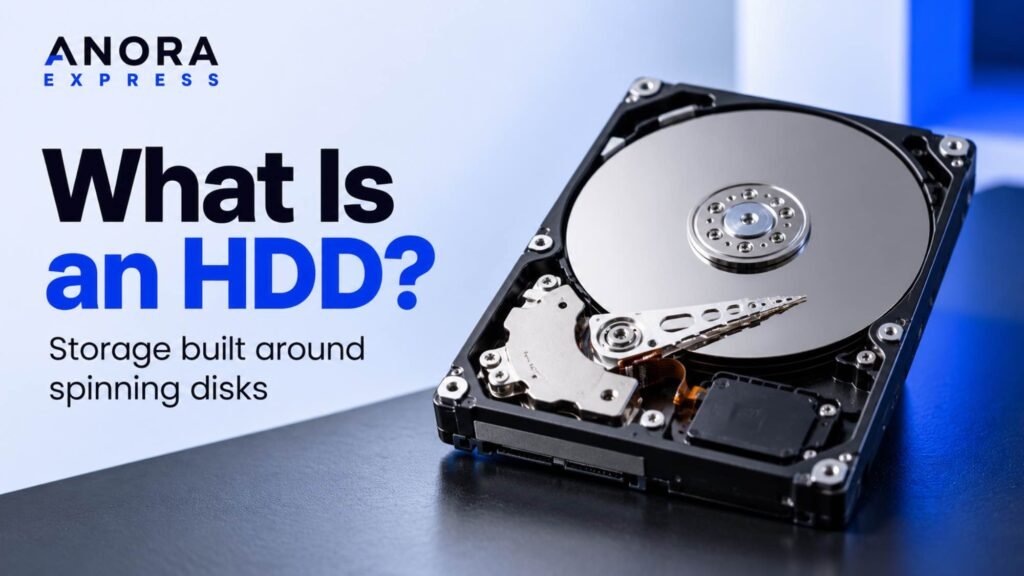
HDD stands for Hard Disk Drive. It is a traditional storage device that uses magnetic disks, known as platters, to store information.
Inside an HDD, these platters spin while a mechanical read/write head accesses the stored data.
HDDs have been used in computers for decades and remain useful when large storage capacity is more important than speed.
Their biggest advantage is affordability.
You can generally purchase an HDD with more storage capacity for less money than an SSD with the same capacity.
HDDs are commonly used for:
- Storing large video files.
- Keeping photo collections.
- Backing up important documents.
- Archiving business files.
- Storing large media libraries.
- Keeping files that do not require frequent access.
However, their mechanical design makes them slower and more sensitive to physical shocks than SSDs.
SSD vs HDD: Key Differences at a Glance
Here is a quick comparison of both storage technologies.
| Feature | SSD | HDD |
|---|---|---|
| Full meaning | Solid State Drive | Hard Disk Drive |
| Technology | Flash memory | Magnetic spinning disks |
| Speed | Much faster | Slower |
| Startup time | Faster | Slower |
| Application loading | Quick | Relatively slow |
| Noise | Silent | Can produce mechanical noise |
| Durability | More resistant to physical shocks | More vulnerable to physical shocks |
| Power consumption | Generally lower | Generally higher |
| Storage capacity | Available in large capacities | Often offers more capacity per naira |
| Price | More expensive per GB | Generally cheaper per GB |
| Best for | Operating systems, applications and everyday use | Large file storage and backups |
Overall winner: SSD for everyday laptop performance. HDD for affordable bulk storage.
SSD vs HDD: Which Is Faster?
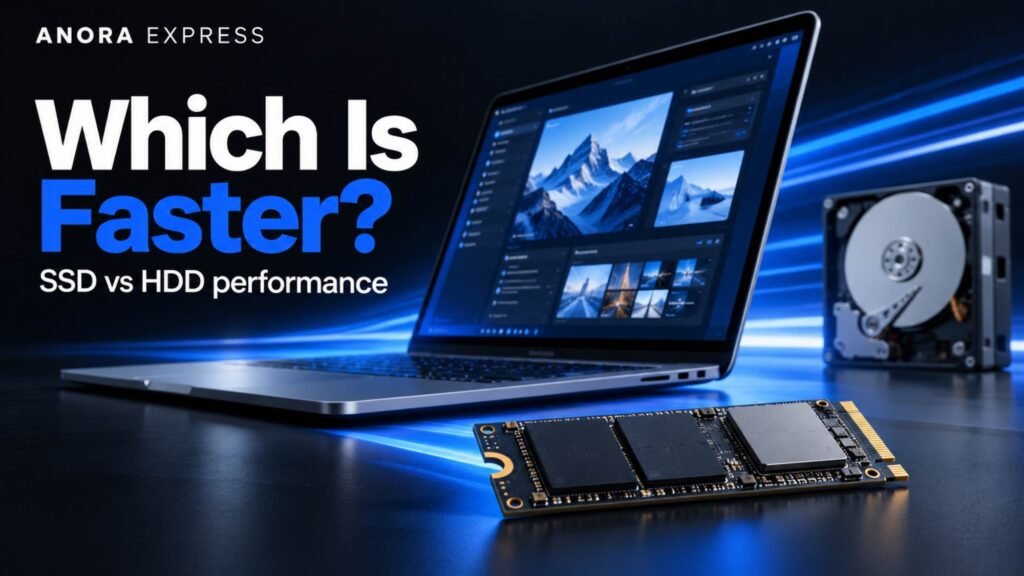
Speed is the biggest difference between an SSD and HDD.
An SSD can read and write data much faster because it does not need to wait for spinning disks or mechanical read/write heads.
This difference affects almost everything you do on your laptop.
Laptop Startup
A laptop with an SSD generally boots much faster than one with an HDD.
Instead of waiting several minutes for your computer to become responsive, an SSD-equipped laptop can often start within seconds, depending on the hardware and operating system.
Opening Applications
Applications installed on an SSD usually launch faster.
Programs such as Google Chrome, Microsoft Office, Photoshop and development tools can load more quickly.
File Transfers
SSDs also offer faster file transfer speeds.
This is particularly useful when copying large documents, transferring videos or moving files between storage devices.
However, actual performance depends on the type of SSD, its interface and the connected device.
SSD Speed Types
Not all SSDs perform at the same speed.
Common types include:
- SATA SSD: Faster than traditional HDDs and commonly used in older laptops.
- NVMe SSD: Uses the PCIe interface and can deliver significantly higher speeds.
- PCIe Gen 4 SSD: Offers high-performance storage for modern computers.
- PCIe Gen 5 SSD: Provides even higher potential transfer speeds for compatible systems.
For most everyday users, a good SATA SSD already provides a major improvement over an HDD. However, NVMe SSDs are an excellent choice for modern laptops.
Speed winner: SSD.
SSD vs HDD: Which Offers More Storage?
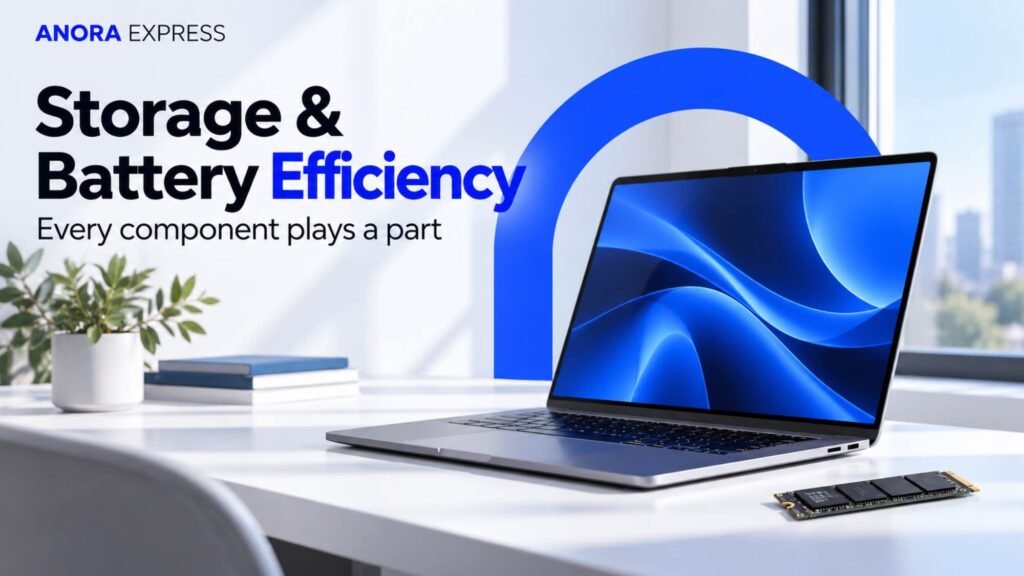
HDDs have traditionally offered an advantage when it comes to affordable high-capacity storage.
You can find HDDs with several terabytes of capacity, making them useful for people who store large amounts of information.
SSDs are also available in large capacities, including 1TB, 2TB and higher configurations. However, their price per gigabyte is generally higher.
For most laptop users, 512GB SSD storage provides a reasonable starting point.
If you work with large video files, games, professional software or extensive media collections, 1TB or more may be preferable.
Which Storage Capacity Should You Choose?
- 256GB SSD: Basic everyday use, but can fill up quickly.
- 512GB SSD: Good for students, office workers and general users.
- 1TB SSD: Excellent for professionals, gamers and content creators.
- 2TB SSD or more: Suitable for large projects and extensive file storage.
Storage capacity winner: HDD for affordable bulk storage.
SSD vs HDD: Which Is More Durable?
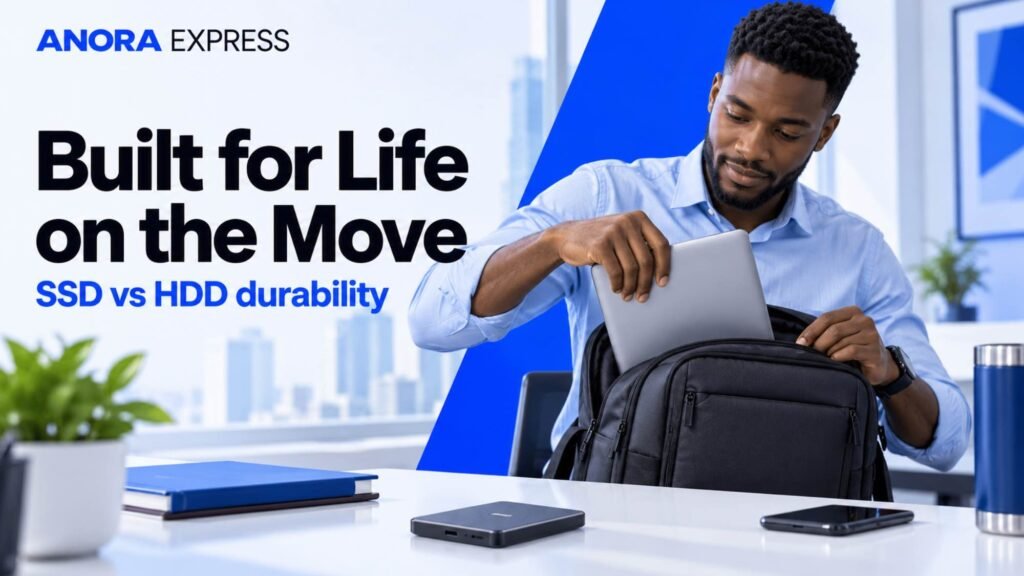
Durability is another important difference.
SSDs do not have moving mechanical parts. This makes them more resistant to physical shocks and vibrations.
For people who frequently travel with their laptops, this can be an important advantage.
HDDs contain spinning platters and moving components. A strong physical impact, especially while the drive is operating, can damage the mechanism or affect stored data.
However, SSDs are not indestructible. They can still fail because of electronic faults, wear or other hardware problems.
Regardless of the storage type you choose, maintaining regular backups is essential.
Durability winner: SSD.
SSD vs HDD: Which Uses Less Power?
SSDs generally consume less power than traditional HDDs.
Because SSDs do not need to spin magnetic disks, they can operate more efficiently.
This can help reduce overall laptop power consumption, although the actual battery-life difference depends on the complete laptop configuration.
HDDs require power to operate their spinning platters and mechanical components.
If battery efficiency is important to you, an SSD is generally the better option.
Power efficiency winner: SSD.
SSD vs HDD: Which Is More Affordable in Nigeria?
Price is an important consideration when buying computer storage in Nigeria.
HDDs generally cost less per gigabyte, making them attractive for users who need large storage capacity without spending too much.
SSDs usually cost more per gigabyte, but their performance advantages make them worthwhile for most laptop users.
For example, consider two laptops with otherwise similar specifications.
One has a 512GB SSD, while the other has a 1TB HDD.
Although the HDD laptop offers twice the storage capacity, the SSD laptop will generally feel much faster during everyday use.
For many buyers, the improved responsiveness is worth prioritising over additional storage space.
You should also consider whether the laptop supports storage upgrades. Some laptops allow you to replace or add an SSD, while others have more restrictive designs.
Price winner: HDD for cost per gigabyte. SSD for overall everyday value.
Can You Use an SSD and HDD Together?
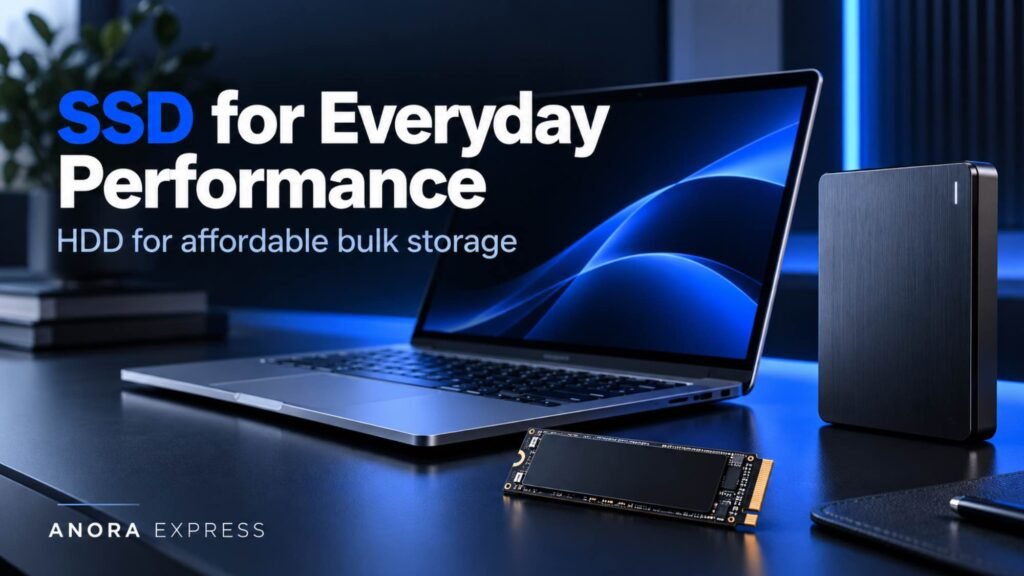
Yes.
Some desktop computers and older laptops support both SSD and HDD storage.
This arrangement allows you to enjoy the speed of an SSD while benefiting from the additional capacity of an HDD.
For example:
- SSD: Install Windows, applications and frequently used programs.
- HDD: Store videos, documents, photographs and large files.
This gives you a balance between performance and storage capacity.
However, many modern thin laptops only support one internal storage drive or use storage configurations that cannot accommodate an additional HDD.
Always check your laptop’s specifications before purchasing an extra drive.
Is an SSD Better for Gaming?
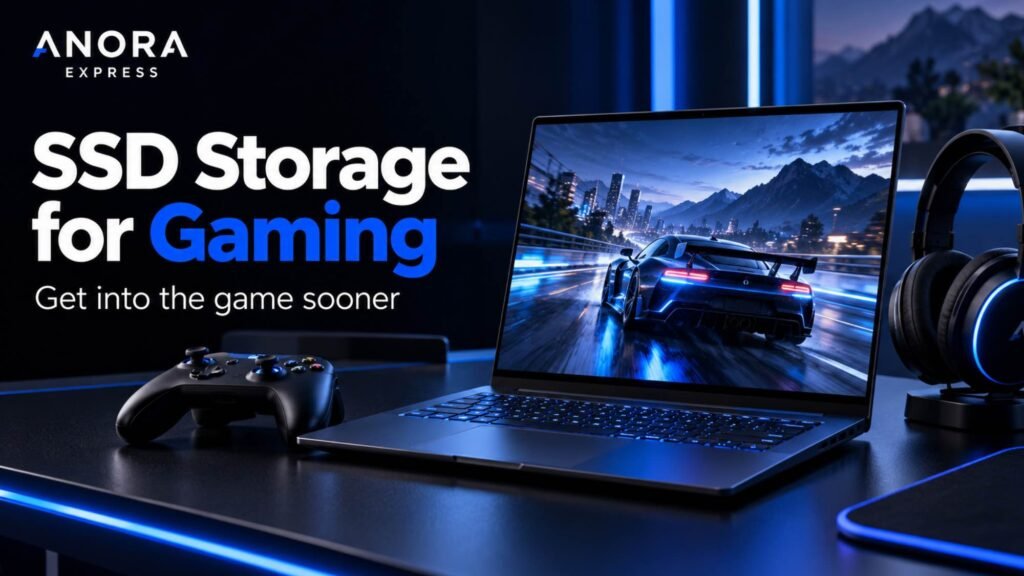
Yes, an SSD is generally better for gaming.
Games installed on an SSD usually benefit from faster loading times, quicker access to game files and smoother asset streaming in supported titles.
However, an SSD does not automatically increase your gaming frame rate.
Your processor, graphics card and available RAM have a much greater influence on overall gaming performance.
For a modern gaming laptop, an SSD is strongly recommended.
A 1TB SSD can also be useful if you install several large games.
Gaming storage winner: SSD.
Is an SSD Better for Programming and Professional Work?
For programming and professional productivity, an SSD is the better choice.
Development environments often involve multiple applications, project files, databases and dependencies.
An SSD helps reduce the time required to load applications, access project files and perform storage-intensive operations.
The same advantage applies to:
- Graphic design.
- Video editing.
- Software development.
- Photography.
- Business productivity.
- Data analysis.
- Engineering applications.
If you regularly work with large files, a fast NVMe SSD can be particularly useful.
Should You Buy an SSD or HDD Laptop in 2026?
For most buyers in 2026, I recommend choosing a laptop with an SSD.
Modern operating systems and applications benefit from faster storage. An SSD also makes everyday computing more responsive.
An HDD-only laptop may still work for basic tasks, but its slower performance can make the overall experience feel outdated.
Here is our recommendation:
Choose an SSD if you:
- Want faster laptop startup.
- Use several applications daily.
- Work or study with your laptop.
- Play PC games.
- Edit photos or videos.
- Develop software.
- Travel frequently.
- Want a quieter and more responsive laptop.
Choose an HDD if you:
- Need affordable high-capacity storage.
- Store large collections of files.
- Need a secondary backup drive.
- Have a specific legacy system that requires an HDD.
For most people, an SSD is the better primary storage device.
How Much SSD Storage Do You Need?
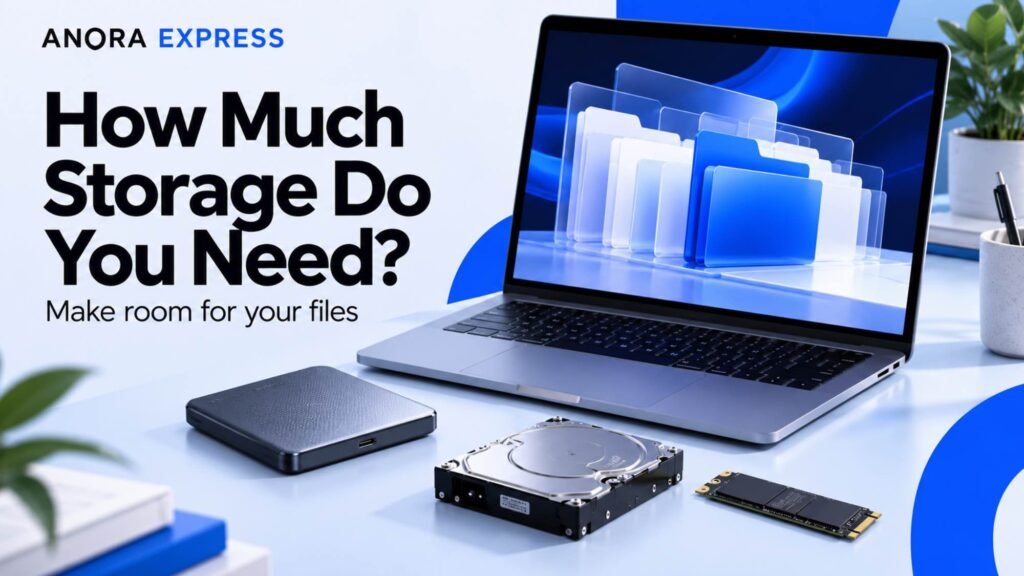
Choosing SSD technology is only half the decision. You also need to choose the right capacity.
Here is a simple guide:
| User Type | Recommended Storage |
|---|---|
| Basic student | 256GB–512GB SSD |
| University student | 512GB SSD |
| Office worker | 512GB SSD |
| Business professional | 512GB–1TB SSD |
| Programmer | 512GB–1TB SSD |
| Gamer | 1TB SSD |
| Graphic designer | 512GB–1TB SSD |
| Video editor | 1TB–2TB SSD |
| Professional creator | 2TB SSD or more |
If your budget allows it, 512GB is a good starting point for a new laptop.
However, consider your applications and files before making a final decision.
You can also use an external SSD to expand your storage without replacing your laptop’s internal drive.
Can You Replace an HDD With an SSD?
In many laptops, yes.
If your laptop currently uses an HDD, replacing it with an SSD can significantly improve performance.
This is one of the most effective upgrades for older laptops.
Before upgrading, check:
- Whether your laptop supports SATA or NVMe storage.
- The maximum supported storage capacity.
- Whether the laptop uses a 2.5-inch drive or an M.2 slot.
- Whether the new SSD is compatible with your system.
- Whether you need to clone your existing drive or reinstall Windows.
You should also back up your important files before beginning the upgrade.
If you are unsure about compatibility, ask a qualified technician to check your laptop before purchasing an SSD.
SSD vs HDD: Our Recommendation for Nigerian Buyers
For most laptop buyers in Nigeria, an SSD is the clear recommendation.
Although HDDs remain useful for affordable bulk storage, SSDs provide a much better everyday computing experience.
If you are purchasing a new laptop for school, business, programming, gaming or content creation, look for a model with at least a 512GB SSD if your budget allows.
You should also pay attention to the processor and RAM.
For example, a laptop with 16GB RAM and a 512GB SSD is a strong configuration for many everyday and professional workloads.
If you need additional storage, consider an external SSD or a compatible secondary drive rather than sacrificing your laptop’s primary storage performance.
Final Verdict: SSD vs HDD, Which Should You Choose?
So, SSD vs HDD: which storage is better for your laptop?
For most people, SSD is the better choice in 2026.
It offers faster performance, quicker startup times, silent operation, better resistance to physical shocks and generally lower power consumption.
HDDs still have a place, particularly when you need affordable storage for large files and backups.
However, if you are buying a new laptop, prioritise an SSD.
The difference in everyday performance is significant, and it can make your laptop feel much more responsive.
Before purchasing, check the storage capacity, SSD type, upgradeability and other important specifications.
At Anora Express, explore available laptops and choose a configuration that matches your budget and computing needs.
Our recommendation: Choose a 512GB SSD as a practical starting point, or 1TB if you regularly work with large files and applications.