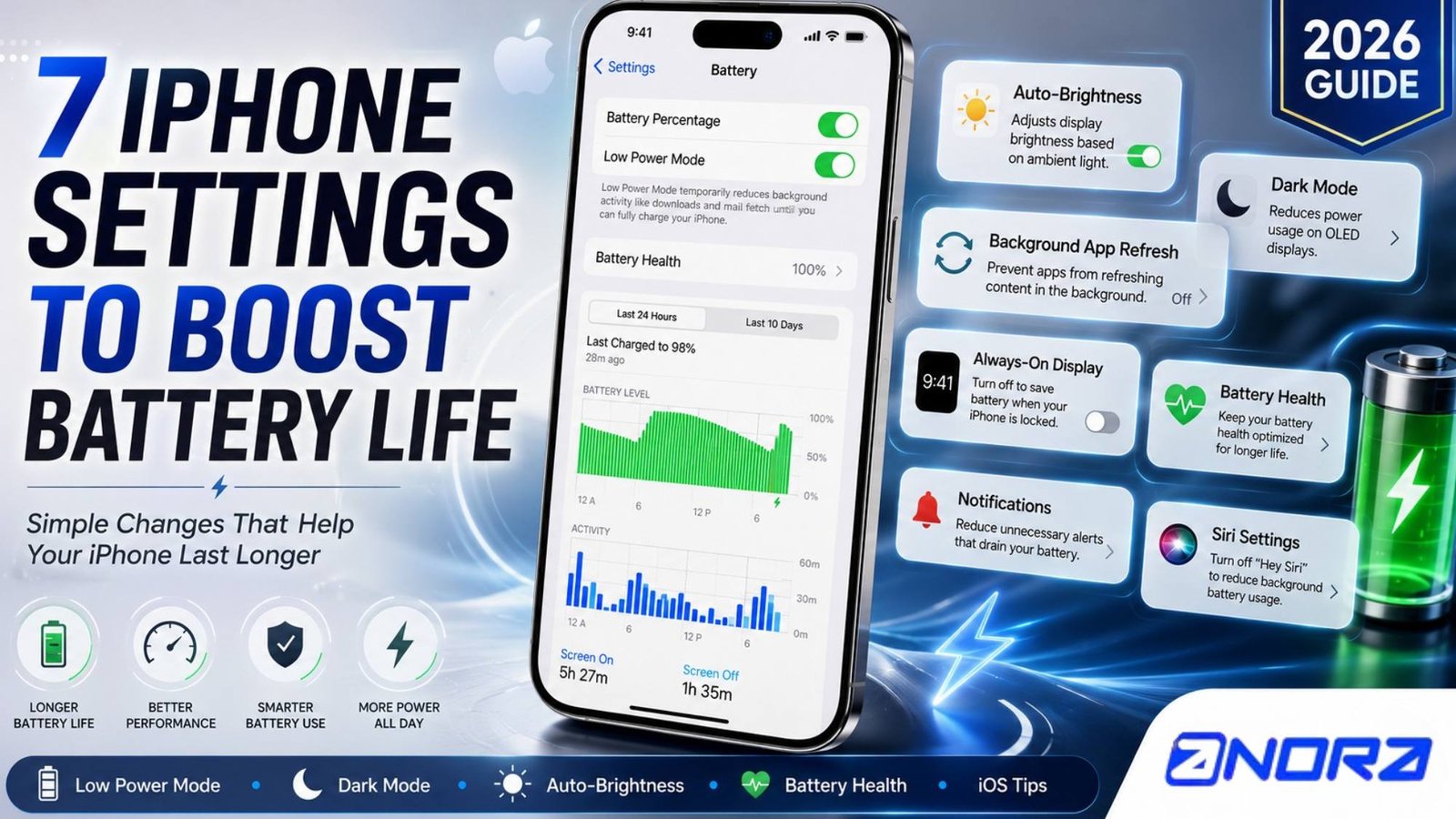
Few things are more frustrating than watching your iPhone battery drain before the day is over. Whether you’re commuting, working remotely, traveling, or simply browsing social media, running out of power can interrupt your plans and leave you searching for a charger.
Fortunately, you don’t always need a new battery or a newer iPhone to enjoy longer battery life. In many cases, the biggest battery drains come from settings that remain enabled by default. With just a few simple adjustments, you can significantly extend the amount of time your iPhone lasts between charges.
If you’re wondering how to improve your iPhone battery life in 2026, these seven settings should be the first place to start.
Why Your iPhone Battery Drains So Quickly
Your iPhone constantly performs tasks in the background. It refreshes apps, checks for notifications, adjusts location services, and powers advanced display features. While these functions improve convenience, they also consume battery throughout the day.
The good news is that you can reduce unnecessary power usage without sacrificing your overall experience.
Let’s look at the settings that make the biggest difference.
1. Reduce Screen Brightness and Enable Auto-Brightness
Your iPhone’s display is the largest consumer of battery power. Running the screen at maximum brightness all day forces the battery to work much harder than necessary.
Instead of leaving brightness at 100%, reduce it to a comfortable level using Control Center.
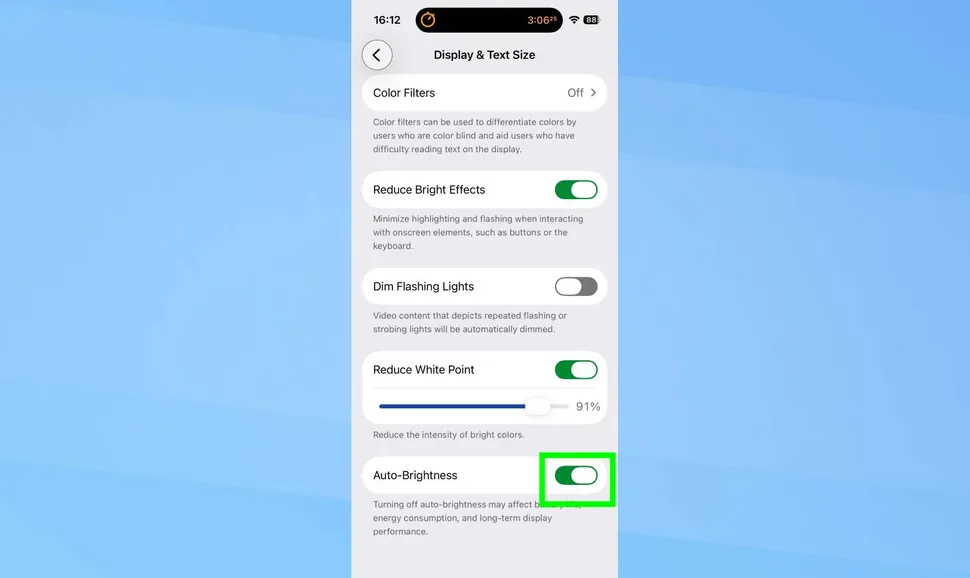
To make things even easier, enable Auto-Brightness:
Settings → Accessibility → Display & Text Size → Auto-Brightness
This feature automatically adjusts your screen based on surrounding light. Indoors, your display remains dimmer, while outdoors it becomes brighter only when needed.
This simple adjustment can noticeably improve battery life over time.
2. Turn Off Always-On Display
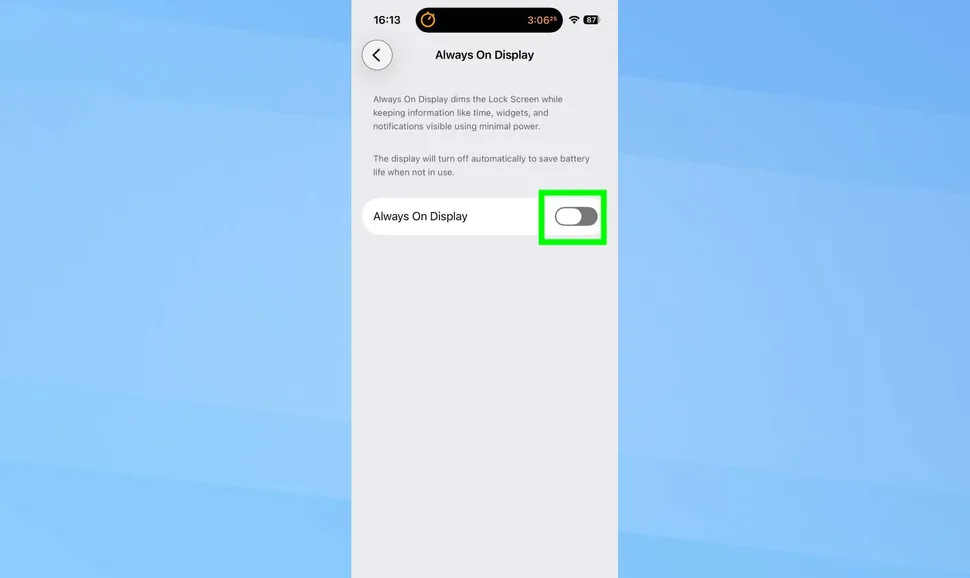
If you own an iPhone Pro model with an Always-On Display, disabling it can save a surprising amount of battery.
Although the display stays dim rather than fully illuminated, it still consumes power throughout the day.
To disable it:
Settings → Display & Brightness → Always On Display
Turn the feature off if you don’t frequently glance at your Lock Screen for notifications or the time.
Your display will wake instantly whenever you tap the screen or raise your phone.
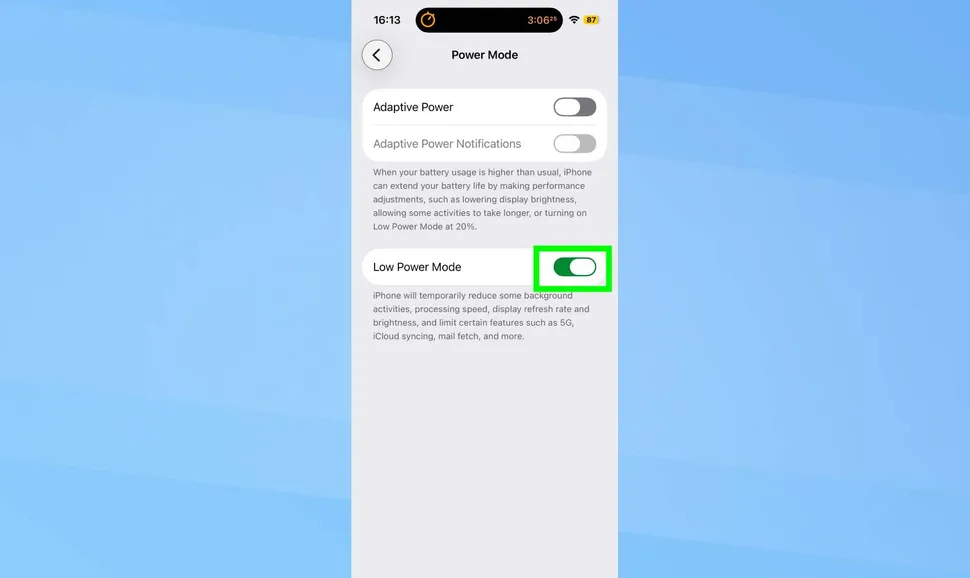
3. Enable Low Power Mode Earlier
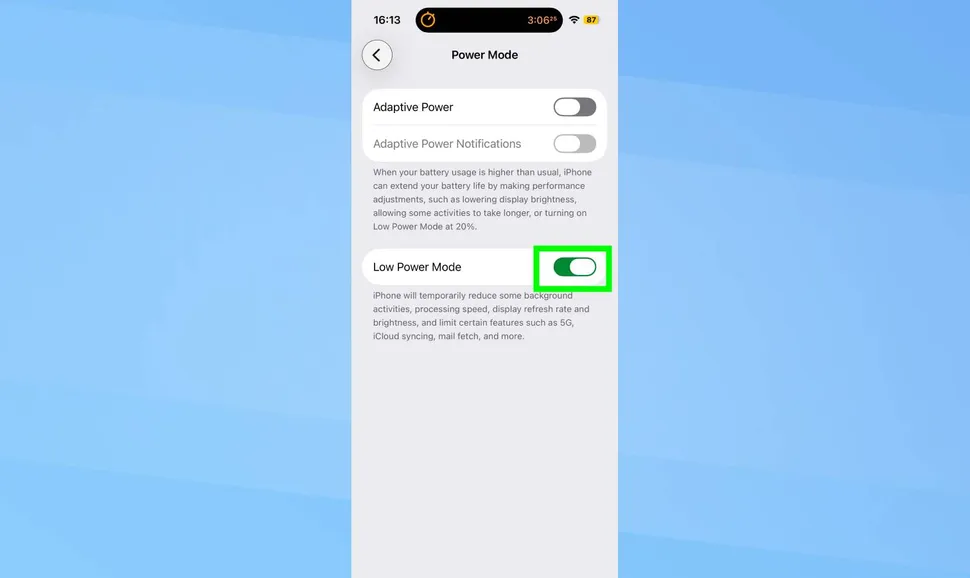
Most users wait until their battery reaches 20% before enabling Low Power Mode.
However, there’s no rule saying you have to wait.
Low Power Mode temporarily reduces power consumption by:
- Lowering display brightness
- Reducing background activity
- Limiting visual effects
- Slowing certain background processes
- Pausing automatic downloads
To activate it:
Settings → Battery → Low Power Mode
You can also add it to Control Center for one-tap access.
If you know you’ll be away from a charger for several hours, enabling this feature early can make a huge difference.
4. Disable Background App Refresh
Many apps continue updating content even when you’re not actively using them.
For example, social media apps refresh feeds, shopping apps download offers, and news apps fetch new articles in the background.
While convenient, these constant updates quietly consume battery.
To disable Background App Refresh:
Settings → General → Background App Refresh
You can either turn it off completely or allow it only over Wi-Fi.
Most people won’t notice any major difference except improved battery life.
5. Reduce Unnecessary Notifications
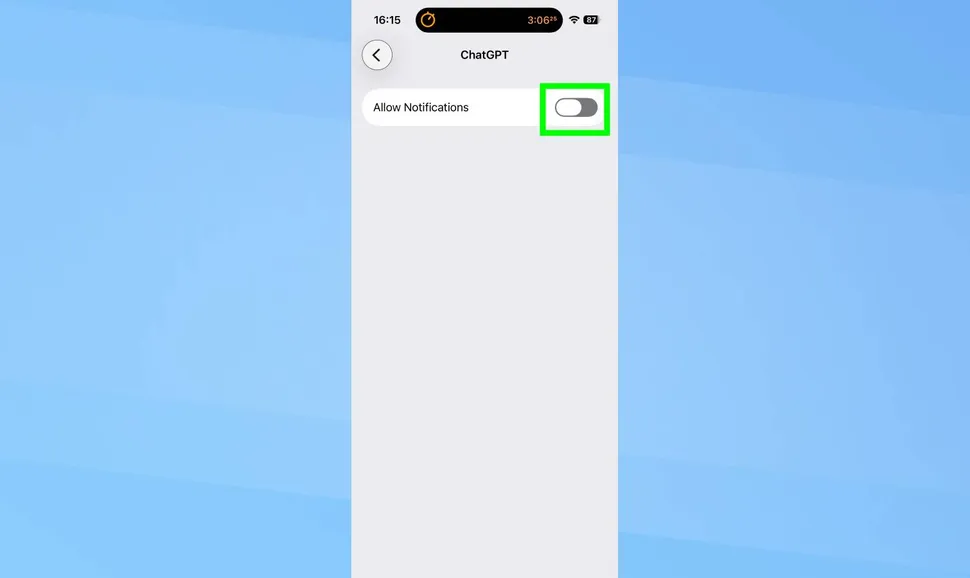
Every notification wakes your display, activates vibration, and uses processing power.
If dozens of apps send alerts throughout the day, your battery pays the price.
Take a few minutes to review your notification settings.
Go to:
Settings → Notifications
Ask yourself whether you really need notifications from:
- Shopping apps
- Games
- Promotional apps
- Social media
- News services
Disabling unnecessary alerts not only saves battery but also reduces distractions.
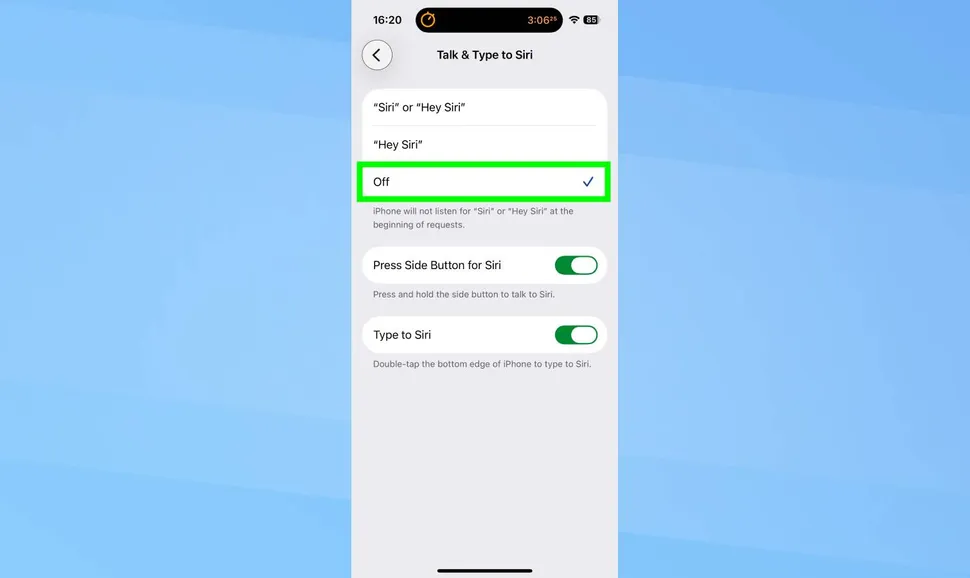
6. Turn Off “Talk to Siri” If You Rarely Use It
Apple’s voice assistant is incredibly useful, but continuously listening for voice commands requires additional power.
If you rarely say “Hey Siri” or “Talk to Siri,” you can safely disable voice activation.
Navigate to:
Settings → Apple Intelligence & Siri → Talk & Type to Siri
Turn off voice activation while keeping Side Button access enabled.
You’ll still be able to use Siri whenever you need it, but without constant background listening.
7. Switch to Dark Mode
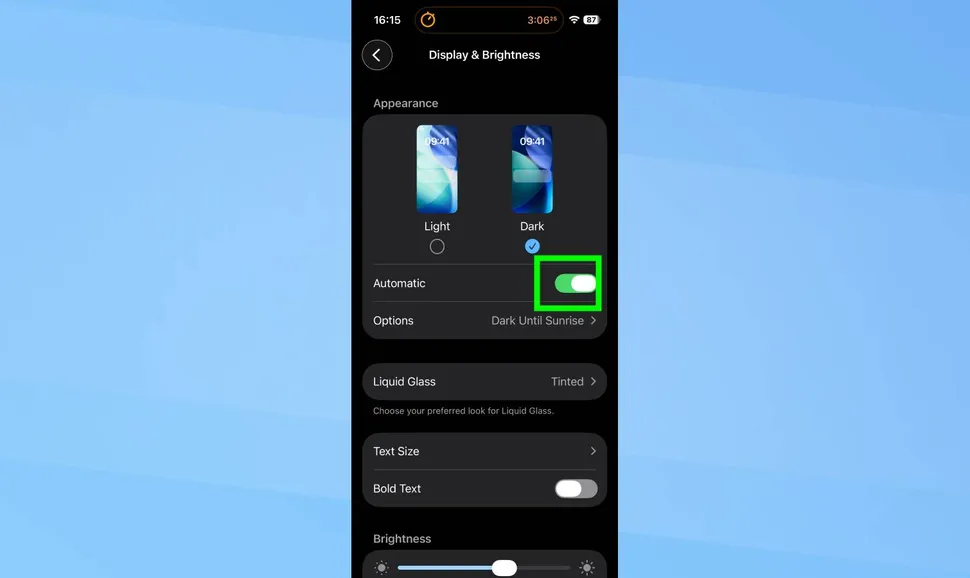
If your iPhone has an OLED display, Dark Mode can help conserve battery.
Unlike LCD screens, OLED panels illuminate individual pixels. Black pixels remain turned off, meaning darker interfaces use less energy.
To enable Dark Mode:
Settings → Display & Brightness → Appearance → Dark
For even better results, enable Automatic mode so your iPhone switches between Light and Dark Mode based on the time of day.
Besides saving battery, many users also find Dark Mode easier on the eyes during nighttime use.
Additional Tips to Extend iPhone Battery Life
Besides changing the settings above, adopting a few healthy charging habits can further improve battery performance.
Consider these recommendations:
- Keep iOS updated to the latest version.
- Avoid exposing your iPhone to extreme heat.
- Use certified charging accessories.
- Enable Optimized Battery Charging.
- Close power-hungry apps after extended gaming sessions.
- Avoid keeping dozens of browser tabs open.
- Turn off Bluetooth and AirDrop when not in use.
- Disable Location Services for apps that don’t require constant access.
Small improvements like these can add up over time.
Does Battery Health Matter?
Yes.
If your Battery Health has dropped below 80%, your iPhone may naturally hold less charge regardless of your settings.
To check it:
Settings → Battery → Battery Health & Charging
If battery capacity is significantly reduced, replacing the battery may restore much of your iPhone’s original endurance.
Which iPhones Benefit Most?
These battery-saving tips work well on nearly every supported iPhone, including:
OLED-equipped models receive additional benefits from Dark Mode and Always-On Display adjustments.
Final Thoughts
You don’t have to live with poor battery life.
By lowering screen brightness, limiting background activity, reducing unnecessary notifications, enabling Low Power Mode earlier, and switching to Dark Mode, you can noticeably extend how long your iPhone lasts every day.
None of these settings reduce your phone’s usefulness. Instead, they help eliminate unnecessary battery drain while preserving the features you actually use.
If your iPhone still struggles to last a full day after making these changes, it’s worth checking your battery health or considering a battery replacement.
With a few minutes of setup, you’ll spend less time searching for chargers and more time enjoying your iPhone throughout the day.
Frequently Asked Questions (FAQs)
1. What drains an iPhone battery the most?
The display, background app activity, location services, constant notifications, and high screen brightness are among the biggest causes of battery drain (iPhone battery life).
2. Does Low Power Mode damage the battery?
No. Low Power Mode simply limits certain background tasks to conserve power. It is completely safe to use every day.
3. Does Dark Mode really save battery?
Yes. On iPhones with OLED displays (iPhone X and newer except LCD models), Dark Mode reduces power consumption because black pixels require little or no energy.
4. Should I leave Background App Refresh on?
For most users, turning it off or limiting it to Wi-Fi is a good way to improve battery life without affecting everyday use.
5. How do I know if I need a new battery?
Check Settings → Battery → Battery Health & Charging. If your maximum capacity is below 80%, replacing the battery may significantly improve performance and battery life (iPhone battery life).